
Google Tag Manager hands you two blocks of code and tells you where to paste them. It doesn’t tell you what they do. If you run ads and do your own tracking, that gap matters, because a wrong install is one of the quiet ways sales go missing from your reports.
This is Google’s install page, read line by line, in plain English. Every quote comes from Google Tag Manager Help, read on November 2, 2026.
Where you get the code
Google’s steps: go to tagmanager.google.com, sign in, open your container, and “In the Workspace tab, select your container ID (which starts with ‘GTM’).” That opens the Install Google Tag Manager dialog with your two blocks.
One line is easy to miss: the steps are “for each page of your website”. Both blocks go on every page, not only the home page.
If your site runs on WordPress, Shopify or Wix, Google says you can set up the Google tag with an integration instead of editing code on each page. Check whether your platform’s integration also covers your GTM container. The checks below still apply.
Block one: the one that does the work
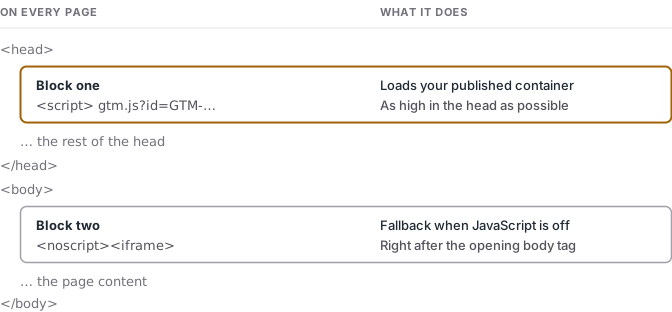
Google’s instruction: “Copy the first block of code and paste it as high in the <head> tag as possible.”
Read the code and you’ll see it loads a file from googletagmanager.com/gtm.js with your container ID. That file is your published container, with the tags, triggers and variables you set up in Tag Manager. Once it loads, each tag fires when its trigger conditions are met.
Why “as high as possible”? So the container starts loading before the rest of the page, and your tags get their chance to run early.
Block two: the fallback
Google’s instruction: “Copy the second block of code and paste it immediately after the opening <body> tag.”
This block is an iframe inside a <noscript> tag. In HTML, what’s inside <noscript> is only used when scripting is turned off in the browser. Google’s page doesn’t explain it, but that’s its job, a fallback for visitors with JavaScript disabled. Google includes it in the standard install, so paste it.
Test it the way Google says
Step 5.3 on Google’s page: “Test your website by entering your website’s link and then clicking Test.” Do that for one page before you call the install done.
Then do your own check:
- Open your site in a browser, right-click and choose View Page Source.
- Search for
GTM-. You should find your container ID in the head block and again in the noscript block. If you find nothing, your site may add GTM through a plugin or integration. Check there. - If you find another
GTM-ID, find out whether a second container is actually loading and why, before you touch it. Tag Assistant or Preview shows what really runs.
Where gtag fits in
gtag.js is Google’s other install code, also called the Google tag. Google’s comparison page puts it this way: “The Google tag (gtag.js) can only send data to Google services.” Tag Manager, by contrast, “supports Google-specific tags, a wide array of third-party tags, and even custom tags.”
And on using both: “If you already use Tag Manager, continue to do so. Tag Manager fully supports Google Ads and Google Marketing Platform tags, and there is no need to deploy additional code using gtag.js on your site if Tag Manager is already in use.”
So search your page source for gtag as well. If it’s there next to your GTM code, it isn’t automatically wrong. Someone may have added it for a reason. Find out what it does and what depends on it before you change anything.
The October 8, 2026 change to check this week
Google’s release notes, October 8, 2026: “all Google Tag Manager (gtm.js) container snippets will initialize on container load, regardless of any gtag(‘config’) commands.” And: “config commands will now surface in the dataLayer as visible gtag.config events. If your Google Tag Manager containers use wildcard custom event triggers, this change may cause those tags to fire.”
In plain English: Google’s note says gtag config code on your pages will show up inside Tag Manager as an event. A trigger built to catch any event can catch it too, and fire tags you didn’t expect.
How to check your container:
- In Tag Manager, open Triggers.
- Look for Custom Event triggers with “use regex matching” on and
.*as the event name. - Google’s own warning on that setup: “The
.*regex means that your trigger will execute on all detected events, including events that Google Tag Manager and Google tag emit automatically. It’s recommended that you use a more restricted regex when using regex matching.”
If you find one, narrow it to the events you actually mean, then test in Preview before you publish.
If your site uses the GTM snippet with gtag('config') commands to deploy a Google tag ID such as G- or AW-, Google describes that setup as unsupported and explains how to fix it (“Set up your Google tag installation correctly for gtag.js”). Read it before you change code on a live site.
Why this is about money
If a measurement tag fails to load, it can miss the visits and sales it was meant to record. A tag that fires on the wrong event can send extra data. Google Ads and Meta use your conversion data to decide where your budget goes, so check your page source and your triggers before you trust the reports.
Sources
- Google Tag Manager Help, “Install a web container” (support.google.com/tagmanager/answer/14847097)
- Google Tag Manager Help, “Google Tag Manager vs. gtag.js” (support.google.com/tagmanager/answer/7582054)
- Google Tag Manager release notes, October 8, 2026 (support.google.com/tagmanager/answer/4620708)
- Google Tag Manager Help, “Custom event trigger” (support.google.com/tagmanager/answer/7679219)
- Google Tag Manager Help, “Set up your Google tag installation correctly for gtag.js” (support.google.com/tagmanager/answer/17231523)
- MDN,
<noscript>element