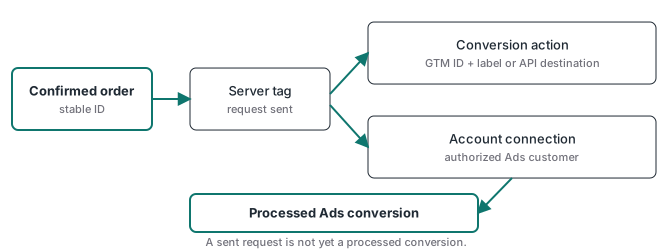
A server tag firing doesn’t mean Google Ads has a usable conversion. The action may have been created for a different delivery route, the Google identity behind the Stape connection may not reach the Ads account you meant, or the Data Manager event may still be processing. These are three separate checks. Fixing one doesn’t prove the other two.
If you’re moving a live account, keep its working conversion path while you test the replacement. Two different actions in the same campaign goals can count one sale twice. Keep the old action as the bidding signal, test the new path without adding a second one, and switch after Google shows processed conversions. The offline conversion tracking guide covers the click-ID side of that journey.
The conversion action has to match the delivery route
A manual Google Ads website conversion meant for a GTM conversion tag needs the conversion ID and label from the action’s Use Google Tag Manager setup path. Google’s Tag Manager conversion guide says automatically created actions may not provide a standalone label. Its web conversion guide says codeless actions don’t support the Tag Manager integration button. If your tag expects an ID and label and the action has neither, fix the action before you debug the server.
“The source must be Tag Manager” is only true for that workflow: a manual website action plus a GTM conversion tag. A GA4 key event imported into Ads has its own source and behaviour. A Data Manager API Conversion Events tag is an API delivery path with its own destination settings. Google’s multi-source conversion page (checked 2026-10-17) says supplemental Data Manager data applies to website actions “set up manually using code”, and isn’t available for imported Analytics conversions or URL-based actions.
| What you are sending | Check the action or destination | Do not assume |
|---|---|---|
| A GTM Google Ads conversion tag | Manual website action, ID, label, trigger, transaction ID | A GA4 import supplies the same label |
| A GA4 key event imported into Ads | Analytics link, imported event, Ads goal setting | A server GTM tag changes the imported action's source |
| A Data Manager API conversion event | Supported destination action, API tag mapping, authorized account | An accepted API request already appears in Ads reports |
For a purchase, send a stable transaction ID and compare it with the paid order. It limits duplicate counting. It doesn’t turn an unpaid or repeated browser event into a sale. The GA4 conversion tracking guide explains the difference between marking an event as important and verifying the business outcome.
Three IDs in Stape’s tag, and which one takes the MCC
Stape’s Data Manager API tag guide (updated Aug 4, 2026, checked 2026-10-17) asks for three IDs that look alike and do different jobs. Correct OAuth won’t fix a swapped pair.
| Field in the tag | What goes there | Example (illustrative) |
|---|---|---|
| Operating Customer ID | The Ads account that receives the conversion, no hyphens | 1234567890 (the client account) |
| Customer ID | The account used for authorization: the manager ID when you reach the client through an MCC, otherwise the client’s own ID | 9876543210 (the MCC) |
| Conversion Event ID | The conversion action ID, the ctId value in the URL under Goals > Conversions > Summary |
7000000000 |
Stape’s connection guide (updated Aug 7, 2026, checked 2026-10-17) says the connection is “available for sGTM containers on the Pro subscription plans and higher”, lists at least Standard or Admin access as a prerequisite, and asks for a Google account with Admin access during sign-in. Check the plan before you spend time on OAuth.
With an MCC, don’t trust the email visible in your browser. Confirm which Google identity completed OAuth, which manager account it belongs to, and whether it has at least Standard access to the customer account that receives conversions. A teammate’s login that can see the MCC but not that client won’t do. The requirement is access to the target account, not a particular person’s sign-in.
A “failed” label can also stay on screen after a successful re-login. Record the sign-in time and the account you picked before you disconnect a working credential again.
Stape’s Connections overview also notes that its older Google Ads connection isn’t supported for new setups, though existing ones keep working. For a new container sending Data Manager events, use the Google Data Manager API connection.
Two tag switches can make a broken send look green
The same Stape tag has two settings that explain a lot of “the tag fired but Ads is empty” reports:
- Validate Only: Stape says “the request is validated but not executed. Only validation errors are returned.” Left on after testing, nothing is ever sent.
- Use Optimistic Scenario: it “triggers
gtmOnSuccess()immediately without waiting for an API response”, so the preview shows success even when the API call fails afterward.
If Optimistic Scenario is on, read the actual API response in the server container’s logs before you start waiting for reports.
The template also checks the transaction ID. When I read its source on 2026-05-29, it returned “Transaction ID value is invalid.” for a single character or for placeholders such as null, undefined and 123. In our own server container in May 2026 we left that field on auto-map rather than wiring a lookup variable that could resolve to undefined, because a junk value fails the whole tag.
Whether a missing value is acceptable depends on the destination. Google’s Data Manager online events guide (checked 2026-10-17) lists transactionId as required for website conversions sent alongside the tag, because it’s the key Google uses to deduplicate them against tag conversions. For offline UPLOAD_CLICKS imports it’s recommended, not required. For a website action, read the outbound request and confirm that auto-map really filled a stable order ID.
Data Manager can look empty for a day or two
An API response and a conversion report answer different questions. Google’s file-import help (checked 2026-10-17) says imported data “can take 24-48 hours” to process, and its discrepancy guidance gives the same window for Analytics-to-Ads sync. Neither is a Data Manager service guarantee. The same import help says to wait 4 to 6 hours after creating a new conversion action before uploading to it. It’s written for file imports, but I treat a brand-new action the same way before judging the API path.
A 200 from Data Manager means the request arrived. Processing happens later, and rows rejected after the 200 only appear through requestStatus:retrieve. When I checked one on 2026-09-26, it still read PROCESSING minutes after the send.
Record the conversion action ID, customer ID, transaction ID, event time, currency, value and response for one controlled paid order. Compare the same order in Ads after processing. If nothing shows, look at authorization, mapping, eligibility, consent and click matching. Don’t resend the same test with a fresh order ID to make the dashboard move; that turns a delivery question into a duplicate.
Google’s multi-source page says deduplication only happens “within a single conversion action” and doesn’t apply “across two different conversion actions”. That’s the reason to keep a new action out of the campaign’s goals while you test it.
Migrate without losing bidding history or counting twice
Run the old and new pipelines side by side for a bounded period, with one action designated for bidding. Keep a small ledger of confirmed orders and the IDs each path sent.
Setting the test action to secondary isn’t enough on its own. Google’s primary and secondary actions page (checked 2026-10-17) says secondary actions are “for observation only”, with one exception: “if the secondary action is part of a custom goal, in which case it’s used for bidding.” Keep the test action secondary and outside any custom goal the campaign bids on.
- Freeze the current state. Save the action settings, ID and label, goal and custom-goal membership, account permissions, server tag version, and a recent baseline of processed conversions.
- Send one confirmed test order with its real transaction ID. A browser thank-you page isn’t payment confirmation.
- Read each layer: check the server preview, Stape connection state, that Validate Only is off, the outbound API response (not just the tag status if Optimistic Scenario is on), Google’s request status and diagnostics, and finally the Ads conversion row.
- After processing, reconcile transaction IDs, values and event times against the paid-order ledger. Timing and attribution differ; missing or duplicated sales need a cause.
- Switch once. Move the verified action into the campaign goal, remove the old action from that goal if both represent the same sale, and watch a full reporting cycle.
The ATA Tracking Toolkit is being built around the webhook-validated purchase path behind this checklist, and it’s on a waitlist until release. It won’t replace Ads account permissions or Google’s processing time, so verify the action and the account identity before you change a live campaign goal.