
You can let Claude or any other AI build and debug your Google Tag Manager setup, as long as it never publishes. Give the account it uses Edit permission, check that the workspace starts from your live version, have it work in a new workspace, test in Preview, confirm the event in the destination itself (GA4 DebugView, Meta Test Events), and only then publish a named version you can roll back to. The AI writes the change. A person ships it.
The same question keeps coming up in PPC groups. Is there a tool that lets Claude build and test a GTM setup? The tools exist in several shapes. AI can write a container JSON for you to import, call the Tag Manager API, or drive it through an MCP server someone wrapped around that API. All of them can produce a working tag. None of them can tell you whether your sales still reach Meta and Google after the change, and that’s the part that costs money.
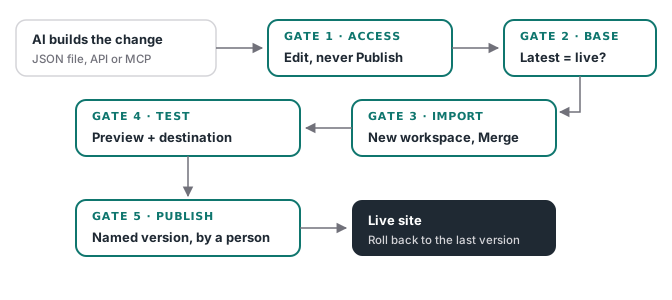
What an untested change costs
A broken purchase tag doesn’t throw an error on your site. The checkout works, the customer gets the email, and the event just stops arriving, or arrives twice. Meta and Google keep bidding, now learning from the sales that are left (or from duplicates), and the ROAS you read the next morning is built on that. The longer it runs, the more budget goes into optimizing on the wrong data.
That’s why the workflow below puts a gate between “the AI built it” and “it’s live”, and why every gate checks something you can see, not something the AI says it did.
Step 1: give the AI Edit, not Publish
Tag Manager has four container permission levels, and Google’s help page defines them plainly. Read can browse. Edit “has rights to create workspaces and make edits but not create versions or publish.” Approve can also create versions. Publish can do everything, including making changes live (GTM user permissions).
Whatever account or API credential your AI uses gets Edit. That one setting means this identity can’t publish, which is a much easier thing to trust than a prompt that says “don’t publish.” It holds only for the identity you restricted. If the same tool can also reach a browser session or a key with Publish rights, the limit doesn’t cover that path.
If you use the API, one more detail matters. The create_version call “creates a Container Version from the entities present in the workspace, deletes the workspace, and sets the base container version to the newly created version” (GTM API reference). An agent with Approve rights that calls it has closed the workspace you were reviewing. Keep version creation with the person who publishes.
Step 2: check what the workspace starts from
A new workspace starts from the container’s latest version, and the API treats “latest” and “live” as two separate things you can look up. Usually they’re the same version. They can differ, and when they do, the workspace isn’t built on what your site is running.
We ran into it on a client container in September 2026. Version 20 was live. Version 21 had been saved, not published, and it moved two tags to a new trigger. The fresh workspace we opened carried that change, so publishing it would have shipped version 21’s edit along with ours. That was one container, and it may not happen on yours, but it is why our own GTM scripts now refuse to start when the latest and live versions differ.
Before the AI starts, open Versions and compare the newest version with the one marked live. If they differ, find out why before anything new goes on top.
Step 3: import AI-generated JSON into a new workspace
The simplest AI route is a JSON file. GTM supports it directly. Go to Admin, Import Container, and choose the file (container export and import). GTM then asks which workspace it lands in, new or existing, and after that whether to Overwrite or Merge.
Choose a new workspace, then Merge. Your other workspaces stay untouched, and you can throw this one away if the result is wrong. Overwrite “will remove all your existing tags, triggers and variables, and will replace them with those in the imported container.” Merge keeps them and lets you either overwrite or rename items whose names collide.
Before you confirm, GTM shows how many tags, triggers and variables will be added, modified or deleted. Click View Detailed Changes and read it. If the AI was asked to fix one purchase tag and the preview says it deletes nine variables, stop there.
The same export feature is the cleanest way to review what changed over time. Google suggests storing exported versions in version control and comparing them with diff tools, which suits an AI workflow well: export before, export after, read the diff.
Step 4: test in Preview, then in the destination
Preview lets you browse your site “as if the current container draft was deployed”, and Tag Assistant shows which tags fired, in what order, and what data they passed (preview and debug). Run the real action: add to cart, start checkout, complete a test purchase.
A fired tag is not a received event, though. Preview shows which tags fired and the data they processed. It doesn’t prove that Google or Meta received anything. The destination’s own debug view does, so check it too:
- GA4: open DebugView (Admin, Data display, DebugView) while you test. Tag Assistant turns on debug mode for your session. If you test with Analytics consent denied, the events won’t show there, so accept consent in the test session (DebugView).
- Meta: open Test Events for your pixel and confirm the purchase arrives with the parameters you expect. If the change touches Conversions API events, send them with the test code from that screen.
- Google Ads: check the conversion action’s diagnostics after the test.
One caution on Meta. Its Conversions API docs say events sent with a test_event_code “are not dropped. They flow into Events Manager and are used for targeting and ads measurement purposes.” Keep test purchases few and clearly marked so they’re easy to account for.
Step 5: publish a named version you can roll back to
Now a person with Publish access clicks Submit, reviews the Workspace Changes list, and publishes with a version name and description that say what changed and why (publishing and versions). “AI edit: purchase tag value fix, tested in DebugView and Test Events” beats “Version 22” when you’re scrolling the history at midnight.
If something still breaks, open Versions, pick the previous version and publish it. GTM keeps a publish history, so you can see what was live and when. Creating a version from a workspace removes that workspace, so make the fix in a new one and run the same checks again.
The day after, compare paid orders with the purchases each platform received for the same day. Preview tested one session. The daily totals show whether the change holds across all your real orders (how to build that daily check).
Where AI actually helps
None of this means AI is a bad fit for GTM. It’s good at the tedious parts: writing a data layer spec, building twenty similar event tags, mapping variables, reading a container export and explaining what trigger 47 does. It’s often faster at debugging too, if you paste it the Tag Assistant output instead of asking it to guess.
What it can’t do is check its own work against your real orders. That’s the job the workflow keeps for you. If you’re weighing whether to keep GTM at all, we compared the two approaches in GTM vs AI-built tracking.