
Download your Instant Form leads before the retention window closes. Meta makes Lead Ads Instant Form data available to download for up to 90 days from submission. After that window, the lead record is no longer available through Meta’s download. Without a saved copy, your sales team loses access to those contact details.
Meta’s expired-leads guidance, checked November 4, 2026, says: “Leads data will be available for download for up to 90 days” from submission. The same guidance applies the limit to lifetime campaign reports. Switching reporting screens does not extend the deadline.
Do this today: export the leads still available, confirm that the file contains the contact fields, and put new submissions into an automatic archive. Start that archive with the first lead, before a campaign has months of history to lose.
What happens to Meta Lead Ads leads after 90 days?
The download window closes for each Instant Form submission. An old campaign can still show results while its older contact records are unavailable. Changing the report to lifetime does not bring those records back. The deadline starts with the submission, so leads from the same campaign can expire on different days.
This warning concerns the submitted lead information. It does not mean every piece of campaign reporting disappears. The same Meta guidance says messages received in the Page’s Inbox remain there and are not removed after this period. Do not assume that a conversation in the Inbox is a complete backup of the form answers.
Operationally, an expired record with no independent copy is lost to your business. Meta’s public guidance describes download availability; it does not document physical erasure across every internal system. Plan around the access deadline rather than waiting for a recovery route the documentation does not offer.
Can you recover expired Facebook leads?
Look for an existing copy outside the expired download: a CRM record, a previously exported file, or an authorized archive. Connecting an integration now protects future submissions and may retrieve records still available. It cannot reconstruct contact details from an aggregate result count after the source record becomes unavailable.
Check these existing destinations before giving up on an expired record:
- CRM: search the integration that was connected when the form was submitted. Match by lead ID or submission date, including any import-error queue.
- Exports: inspect files held by the account owner and the sales team. Verify that the rows contain answers rather than only campaign totals.
- Email: if lead notifications were configured, check the recipient mailbox. A notification may contain only a link; count it as a saved copy only if the required fields are actually present.
- Existing automation storage: inspect saved outputs and failed jobs from the integration already running at submission time. An ID-only log cannot restore missing answers.
Before concluding that a recent lead has expired, check its submission date, the selected Page and form, the export’s date range, and your lead-access permissions. A permission failure and a retention deadline need different fixes. A lead submitted yesterday deserves an access investigation, not an assumption that it has been deleted.
For records approaching expiry, export now. Open the file and inspect the expected fields. Check the rows, not just whether the download completed. Put the verified file in access-controlled business storage and record which Page, forms and dates it covers.
How do you archive Lead Ads leads from day one?
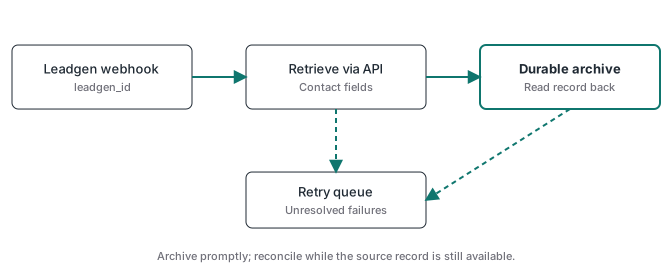
Use the Page’s leadgen webhook to learn that a submission exists, retrieve its fields through the authorized API, and write the result to durable storage. The notification is the trigger. The saved contact record is the outcome. Test that whole path before relying on it for a live campaign.
Meta’s retrieving-leads documentation, checked November 4, 2026, describes both webhook and bulk retrieval. The webhook supplies a leadgen_id; a subsequent API request retrieves the associated data. Saving only the notification can leave you with an identifier and no usable contact details when retrieval later fails.
- Configure authorized access. Set up the app, Page subscription and required permissions for your integration. Subscribe the app to the Page’s
leadgenfield. Meta’s retrieval guide listsads_management,leads_retrieval,pages_show_list,pages_read_engagementandpages_manage_adsfor retrieving all lead and ad-level data. Its webhook prerequisites also listpages_manage_metadata. Use an appropriate Page or User token with the required Page and ad-account access; consult the guide’s Before You Start section for your exact scope. Business lead-access settings also matter; being able to view an ad does not prove the integration can retrieve its leads. - Receive the notification. Validate incoming requests according to Meta’s webhook requirements. Keep credentials on the server. Securely queue the work so a temporary processing failure does not silently discard the lead.
- Fetch the actual record. Retrieve the submitted fields using the lead ID. Capture source identifiers and the submission timestamp alongside the answers you need. Handle pagination when backfilling available leads in bulk.
- Save before declaring success. Use the lead ID as a stable deduplication key. Repeated notifications should update or confirm the same record rather than creating duplicate sales tasks.
- Retry and reconcile. Log failed retrievals and failed writes separately. Reconcile recent available submissions against stored IDs so a missed notification has a recovery path while the source remains accessible.
For the storage side, see how to keep an auditable server-side event database. Adapt that principle to lead records with appropriate access controls; an analytics log should not casually become a public contact database.
The archive needs its own retrieval and storage path. ATA’s server-side conversion tracking offer addresses the separate measurement job: sending confirmed conversion events to ad platforms.
How do you prove the archive works?
Submit a test lead with Meta’s Lead Ads Testing Tool and follow its ID into the destination. Read the stored answers back, check the source form and timestamp, then repeat delivery to check deduplication. A successful webhook response alone proves neither retrieval of the contact fields nor persistence in the archive.
Make failures visible before handover. In a staging copy, use a destination credential without write permission and confirm the failed save remains retryable. Restore write access and verify that the record is eventually saved once. Keep test records separate from sales follow-up; a test lead verifies the integration path, not a real customer submission. Also test a retrieval failure so the alert points to the right stage instead of treating every missing contact as a storage outage.
Keep a small daily check of recent source IDs against archived IDs, plus the age of the oldest unresolved failure. Assign someone to act on it. Conversion tracking monitoring covers the same practical problem: a connection can look healthy while business records stop arriving.
Does Meta CAPI protect your lead archive?
No. Lead retrieval moves contact records from Meta into your authorized system. The Conversions API sends event information toward Meta for measurement and optimization. Its delivery receipt cannot prove that the lead was archived. Our Facebook Conversions API guide covers that separate event-delivery flow.
For the archive, restrict contact-field access to the people who need it. Set a retention deadline for stored records, include backups in deletion handling, and keep personal answers out of routine error alerts. Document who owns those controls when handing the integration to a client.
Export what is available today. Then submit a test lead and read it back from the archive. If you cannot show that record, the backup is still unproved.