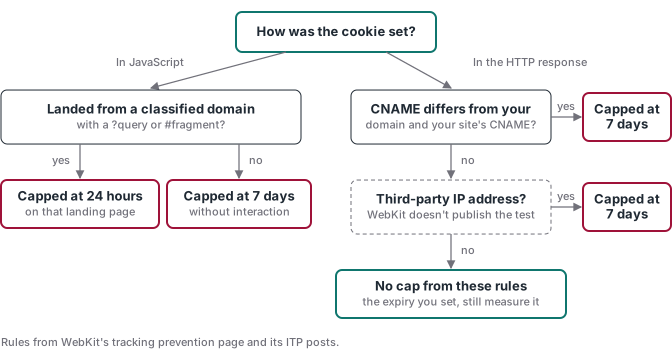
In Safari, a cookie created by JavaScript, which includes the _ga, _fbp and _fbc cookies your tags set, is deleted after 7 days without the visitor clicking, tapping or typing on your site, and capped at 24 hours on some ad landing pages. A cookie your own server sets isn’t shortened by these rules, unless ITP detects third-party CNAME cloaking or third-party IP address cloaking on that server, in which case it is capped at the same 7 days.
That is the whole rule, and it decides how long Safari remembers that a visitor came from your ad. Lose that memory before the sale and the purchase can arrive at Meta or Google without the detail that ties it to the click. The campaign that sold can look like it didn’t, and you may cut budget from an ad that works.
The rules come from Intelligent Tracking Prevention (ITP), the part of Safari’s engine, WebKit, that limits how sites and ad networks follow people around the web. Below is each rule with its WebKit source and date, a table of common tracking setups and the lifetime each one gets, and a checklist to measure what your own site keeps.
The four ITP rules that set a cookie’s lifetime
A cookie can be created in two ways. A script running on the page can write it in JavaScript (WebKit calls these client-side cookies), or a server can send it in the HTTP response with a Set-Cookie header (server-set cookies). Your Meta pixel and Google tag are scripts, so their cookies are JavaScript cookies. ITP treats the two kinds differently.
Rule 1: JavaScript cookies are capped at 7 days without interaction. WebKit introduced this in ITP 2.1, on February 21, 2019: “all persistent client-side cookies, i.e. persistent cookies created through document.cookie, are capped to a seven day expiry.” WebKit’s current tracking prevention page words it as deletion: “ITP deletes all cookies created in JavaScript and all other script-writeable storage after 7 days of no user interaction with the website.” The same rule covers LocalStorage and IndexedDB, so moving an ID from a cookie into browser storage doesn’t escape it.
User interaction has a narrow meaning here. WebKit defines it as “a user click, tap, or keyboard entry on a website” and adds that “Scrolling is not considered user interaction.” A returning visitor who reads and scrolls doesn’t count.
Rule 2: JavaScript cookies on a decorated landing page are capped at 24 hours. Link decoration means adding an ID to the link a visitor clicks, like the fbclid Meta adds to its ad links. That ID is the click ID: it lets the ad platform connect the later sale to the exact ad click. ITP 2.2, on April 24, 2019, capped those cookies at “one day of storage” when both conditions are met:
- “A domain classified with cross-site tracking capabilities was responsible for navigating the user to the current webpage.”
- “The final URL of the navigation mentioned above has a query string and/or a fragment identifier.”
The tracking prevention page now says ITP “caps the expiry of cookies created in JavaScript on the landing webpage to 24 hours.” It doesn’t list which domains are classified. It says ITP classifies a domain when its resource loads match “known patterns of cross-site tracking”, such as showing up as a third-party resource under several websites.
Rule 3: server-set cookies behind a third-party CNAME are capped at 7 days. A CNAME is a DNS record that makes one hostname an alias for another. WebKit writes that cross-site trackers “have convinced site owners to set up CNAME cloaking”: pointing a subdomain such as track.yoursite.com at the tracker’s own domain, so the tracker’s server looks like part of your site. Its November 12, 2020 post says: “ITP now detects third-party CNAME cloaking requests and caps the expiry of any cookies set in the HTTP response to 7 days.” It defines third-party CNAME cloaking as “a first-party subresource that resolves through a CNAME that differs from the first-party domain and differs from the top frame host’s CNAME, if one exists.”
Rule 4: server-set cookies from a third-party IP are capped at 7 days. WebKit bug 246477, filed on October 13, 2022 and marked fixed, is titled “Cap cookie lifetimes to 7 days for responses from third party IP addresses.” The tracking prevention page now joins rules 3 and 4 in one sentence: “ITP detects third-party CNAME cloaking and third-party IP address cloaking requests and caps the expiry of any cookies set in the HTTP response to 7 days.”
Rule 4 comes with the least detail, because WebKit never explains how ITP decides that an IP address is third-party. Stape’s Safari ITP guide (updated November 18, 2025) says “Safari won’t decrease cookies’ lifetime if the IP address of the domain that sets first-party cookies is half matching (i.e., 16 for IPv4, and 64 for IPv6).” We found no such rule on WebKit’s tracking prevention page, its ITP posts or the bug report. Treat it as Stape’s description of the behavior, not something WebKit states, and measure your own setup instead of relying on it.
One more rule sits outside these four. WebKit says “There is no special kind of cookie that constitutes a third-party cookie”: a cookie is third-party when content loaded from another site sends or sets it inside your page. Those are blocked by default. WebKit says “ITP by default blocks all third-party cookies”, and that access “can only be granted through the Storage Access API and the temporary compatibility fix for popups.”
Cookie lifetime by tracking setup
Server-side tracking means your site sends events to a server you control, which forwards them to Meta, Google and the rest. The server-side tracking guide covers the idea. For Safari, what matters is where that server lives and how its cookies get set.
| Setup | Example | How the cookie is set | Maximum lifetime under ITP |
|---|---|---|---|
| Browser tags only (pixel, Google tag, web GTM) | _ga, _fbp, _fbc |
JavaScript | Capped at 7 days without interaction; capped at 24 hours on a decorated landing page from a classified domain |
| Server container on the provider’s default domain (Google’s documented example) | metrics.run.app |
JavaScript only, per Google | Same caps as browser tags. Google’s docs say this setup gets “None. Can only set Javascript cookies.” |
| Tracking subdomain with a CNAME to the provider | data.yoursite.com aliased to the host’s domain |
Server | Capped at 7 days (third-party CNAME cloaking) when the CNAME differs from your first-party domain and from your main site’s CNAME. No CNAME cap if it matches your main site’s CNAME or points to another hostname on your own site. The IP rule still applies separately |
| Tracking subdomain with an A record to the provider’s IP | data.yoursite.com pointing at the host’s IP address |
Server | Capped at 7 days if ITP treats the IP as third-party. WebKit doesn’t publish the test |
| Subdomain on your own infrastructure, no CNAME | data.yoursite.com served by the same servers as your site |
Server | No CNAME cap in WebKit’s table. Capped at 7 days if ITP treats the IP as third-party; the IP test isn’t published |
| Same origin: a path on your own site | www.yoursite.com/metrics forwarded by your CDN |
Server | Our inference, CNAME rule only: same hostname as the page, so it can’t match WebKit’s CNAME cloaking definition. The IP test isn’t published |
The last row is our inference from WebKit’s definition, not a sentence WebKit wrote, and it covers the CNAME rule only. A request to the page’s own hostname resolves exactly like the page, so there is no different CNAME to detect. WebKit’s CNAME table gives the first-party host with no cloaking “No cap.”
Google points the same way. Its same-origin serving guide (last updated June 27, 2025) calls the same-origin path the “best practice” and says the default domain gets “None. Can only set Javascript cookies.” It lists a subdomain as having “Full access to security and durability benefits.” That line describes cookie access, and it doesn’t address Safari’s CNAME and IP caps, so a subdomain still needs the DNS check below.
Why the lifetime costs you money
Your ad platforms connect a sale to an ad through identifiers stored in these cookies. Meta’s fbp and fbc guide says the “Meta Pixel automatically stores ClickID value in the _fbc browser cookie.” Google’s conversion linker “stores this information in first-party cookies and browser local storage on your domain.” Both are written by scripts, so both fall under rules 1 and 2.
Here is an example, with made-up timing. A visitor clicks your Meta ad on Monday, reads your sales page in Safari and leaves. Ten days later they come back through a Google search and buy. If their _fbc cookie was written by the pixel and they didn’t click, tap or type on your site in between, Safari deleted it. The purchase can reach Meta without the click ID, so Meta has one fewer detail to tie the sale to your ad. Meta’s Conversions API best practices say “You can use only matched events for ads attribution and ad delivery optimization,” so if none of the other details match either, the sale can’t be credited. The matched events guide shows how to see which details reach Meta with each sale.
Analytics feels it too. Google’s GA4 cookie page lists 2 years as the _ga cookie’s default expiration, which you can change in the data stream’s cookie settings, and says browsers limit first-party cookies when a visitor doesn’t return, to a “maximum of 400 days for Chrome and 7 days for Safari.” A Safari visitor who returns after that likely gets a new _ga, so GA4 will likely count a returning customer as a new user, and your new-versus-returning numbers can drift.
Check what your site actually keeps
Configured lifetimes are a request to the browser. Safari decides what it keeps. These steps show whether a cookie survived under the conditions you tested.
- List the cookies your attribution needs: usually
_fbcand_fbpfor Meta,_gafor GA4, and the Google Ads click cookies the conversion linker writes. - Open your site in Safari on a Mac with Web Inspector turned on. WebKit’s instructions: Safari, Settings, Advanced, then check “Show features for web developers”.
- Clear your site’s data in Safari, open Web Inspector’s Network tab, then load the page once and keep that first load. Open each request to your tracking endpoint, and write down the name and value of each cookie you depend on. Its Headers pane shows the response headers, where a
Set-Cookieheader carries the expiry the server asked for. A cookie that arrives in a response was set by a server. A cookie missing from every captured response is a strong hint that a script wrote it, so rule 1 likely applies, but it isn’t proof. - For each server-set cookie, compare the hostname and IP address that set it with your page’s. The Network tab has an IP Address column you can switch on. For the CNAME, run
dig data.yoursite.com CNAME +shortin a terminal (with your own tracking hostname), then the same for your main site’s hostname, or use any online DNS lookup. A CNAME that differs from your first-party domain and from your main site’s CNAME matches WebKit’s third-party CNAME definition (rule 3). A CNAME to another hostname on your own site doesn’t. Either way, an IP address your site doesn’t use risks rule 4, which is a separate check.- If
dig data.yoursite.com CNAME +shortreturnssomething.hostingprovider.com.anddig www.yoursite.com CNAME +shortreturns nothing or a different name, that matches WebKit’s third-party CNAME case. - If the first command returns nothing, run
dig data.yoursite.com A +short(andAAAAfor IPv6). If that returns an address, the subdomain has no CNAME and points straight at that address, so only the IP check applies. If both come back empty, the name doesn’t resolve or the lookup failed, so fix that first.
- If
- Test the 7-day rule on one device. After step 3, stay away from the site for 8 days without clicking, tapping or typing on it. Then open the Network tab, load the same page as in step 3 and open the same request to your site or your tracking endpoint, so it’s one the cookie’s domain and path would apply to. Its Cookies pane “displays any request and response cookies”, so a cookie listed among the request cookies, with the same value you noted in step 3, survived. If it’s missing from that request, that tells you it wasn’t sent on that request under the conditions you tested, not why. If it’s there with a new value, it was deleted and set again. Write down the Safari and macOS or iOS versions. The 24-hour rule is hard to reproduce: a plain test query string doesn’t meet its condition, because the visit must come from a domain ITP has classified, and WebKit doesn’t publish that list.
- If a cookie you depend on didn’t survive, evaluate two options. One is moving the tracking endpoint to a same-origin path or onto the same infrastructure as your site. The other is capturing the click ID and sending the purchase from your server. That helps only when the ID is captured at the ad click or landing visit, stored, and linked to the later purchase. It can’t recover an ID that already expired.
Step 6’s second option matters most when buyers pay on a hosted checkout like Stripe, Hotmart or Kiwify. The click ID guide for hosted checkouts covers capturing and storing the click ID and linking it to the payment, and the Stripe conversion tracking guide shows how to send the purchase from the payment webhook, the notification your payment platform sends your server when a payment is approved.
What these rules don’t cover
The rules above apply to Safari and to WebKit’s tracking prevention. Chrome and Firefox handle cookies on their own terms, and the first-party vs third-party cookies guide compares the three browsers. A longer lifetime also doesn’t change what your visitor agreed to, and the Consent Mode guide covers how tags respect that choice.
If you run a GTM server container, the server-side GTM guide covers hosting and custom domains. Whatever you run, read your setup against the four rules above, then let a real device show what Safari kept. An 8-day check shows what survived on that device and setup, nothing more.
Sources
- WebKit, Intelligent Tracking Prevention 2.1, February 21, 2019, read 2026-11-10.
- WebKit, Intelligent Tracking Prevention 2.2, April 24, 2019, read 2026-11-10.
- WebKit, CNAME Cloaking and Bounce Tracking Defense, November 12, 2020, read 2026-11-10.
- WebKit, Tracking Prevention in WebKit, living page, read 2026-11-10.
- WebKit Bugzilla, bug 246477, filed October 13, 2022, read 2026-11-10.
- Google for Developers, Same-origin serving for server-side tagging, last updated June 27, 2025, read 2026-11-10.
- Google Analytics Help, Cookie usage on websites, read 2026-11-10.
- Tag Manager Help, Conversion linker, read 2026-11-10.
- WebKit, Enabling Web Inspector and Network Tab, read 2026-11-10.
- Meta for Developers, Conversions API best practices, read 2026-11-10.
- Meta for Developers, ClickID and the fbp and fbc parameters, read 2026-11-10.
- Stape, Safari ITP: everything you need to know, updated November 18, 2025, read 2026-11-10.